




Receive the latest updates on growth and AI workflows in your inbox every week
The way legal teams work is evolving, and we’re evolving with you. While our in-app editor has served thousands of customers well — providing quick edits, robust commenting, comprehensive version history, and intelligent merge capabilities — we’ve listened carefully to your feedback. You’ve told us that you want richer formatting options, more fluid collaboration, and most importantly, the freedom to work in your preferred editing environment.
Better together: Ironclad Editor, Google Docs, Word (desktop), and Word Online
Today we’re excited to announce a set of integrations that meet legal and procurement teams where they already do most of their writing: Google Docs, Microsoft Word (desktop via our new Add-In), and Word Online. These updates remove friction, keep Ironclad as the single source of truth, and give teams the flexibility to format and collaborate exactly the way they want — without the clunky download → edit → upload loop.
This release is about three core values: choice (work in the tool you prefer), trust (preserve Ironclad metadata, approvals, and audit trail), and continuity (bring changes back to Ironclad as a clean, publishable version).
Below: what’s new, why it matters, how to get started, and recommended best practices.
What’s in the release?
1) Open and edit Ironclad documents in Google Docs
With just a few steps, you can now open any Ironclad document directly in Google Docs — no manual download or upload required. Once there, you can edit, comment, and collaborate just like you normally do, taking advantage of Google’s suggested edits, commenting features, and real-time co-editing capabilities.
When you’re ready to formalize your changes, you bring the document back into Ironclad and publish your changes as a new version. This creates a single, intentional publish event that avoids the version overload that comes from capturing every save. Throughout this process, Ironclad keeps all your metadata intact — approvals, ownership, and the crucial context around external versus internal comments all remain attached to the document lifecycle.
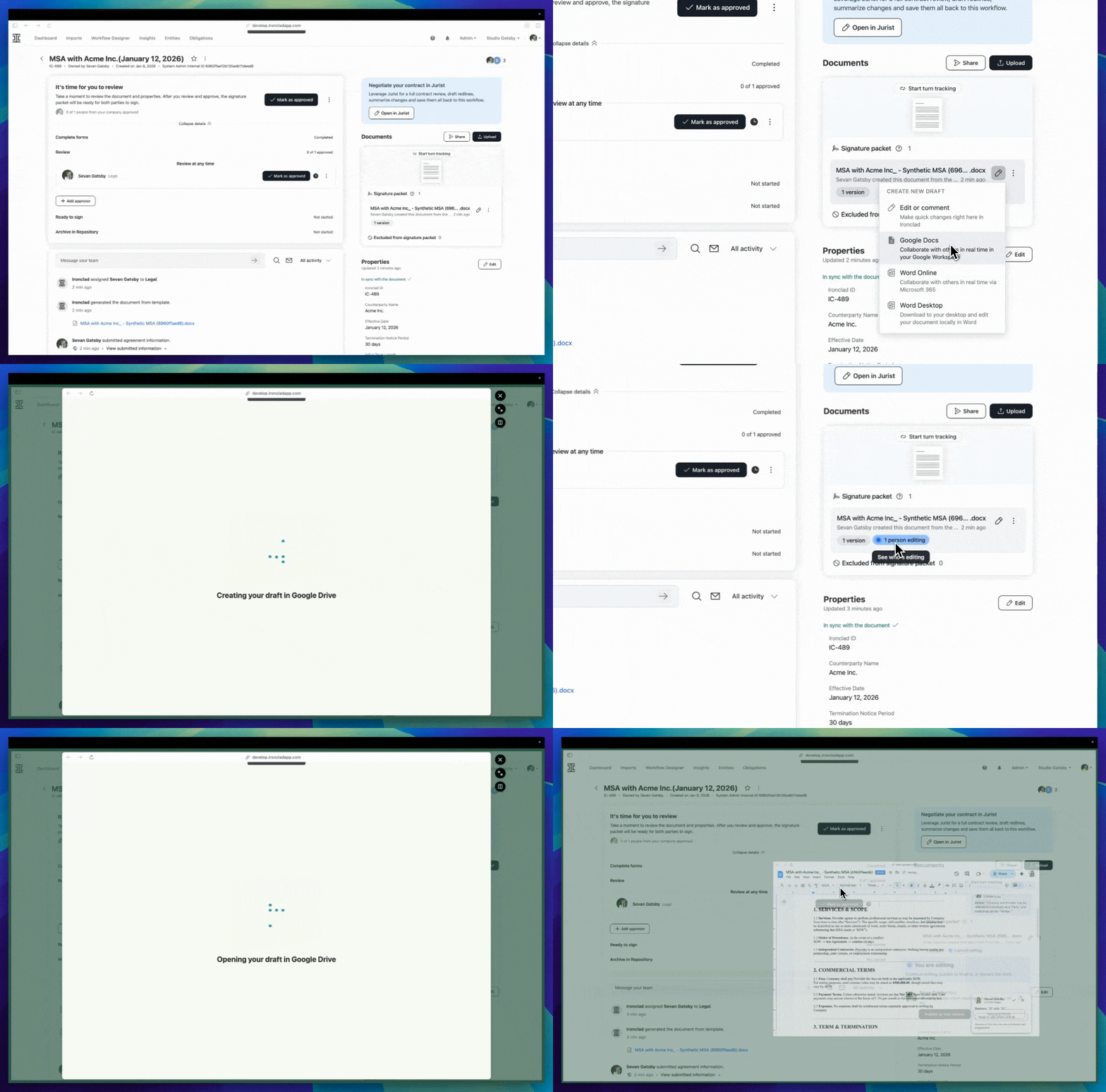
How this helps your team: Google’s multi-user editing model is fluid and familiar. Now teams don’t have to sacrifice that collaborative experience to maintain Ironclad governance.
2) Word desktop — Word Add-In
The Word Add-In that many beta customers have been testing is now generally available. When you have the add-in installed in Word and have signed in, any Ironclad document you have access to shows up in the Add-in panel, complete with document metadata, current approvals, and relevant Ironclad actions.
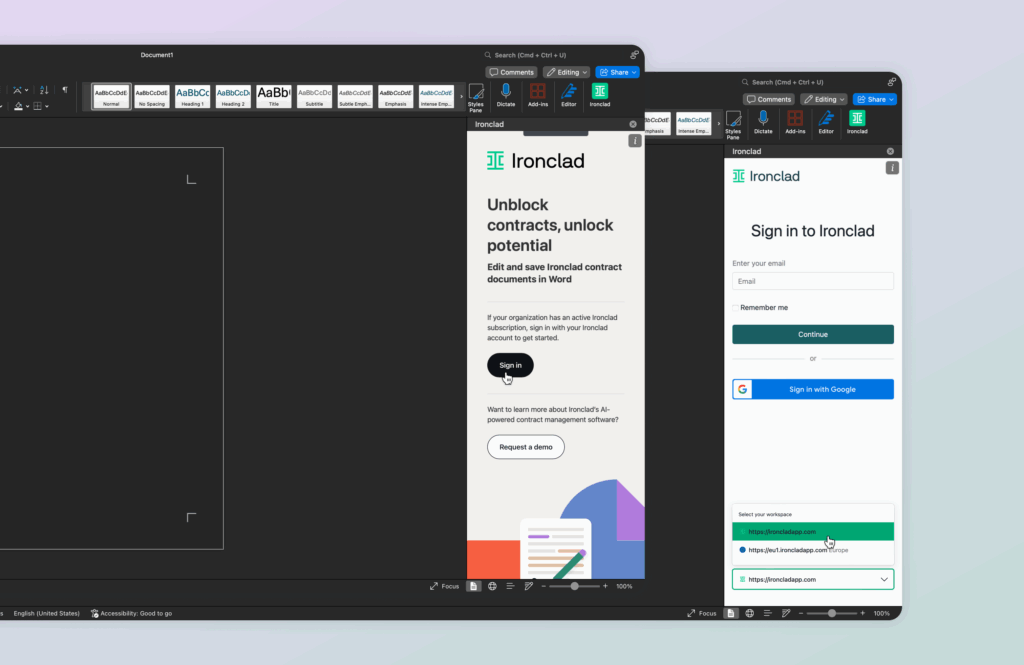
From there, you can upload a new version, add Ironclad comments, or reset and trigger approvals — all from inside Word, with no bouncing between applications. It’s worth noting that some enterprise customers will need admin deployment, as the add-in requires elevated permissions in certain environments. IT admins can deploy it via your Microsoft 365 admin center or AppSource, or users can install it directly if your organization permits.
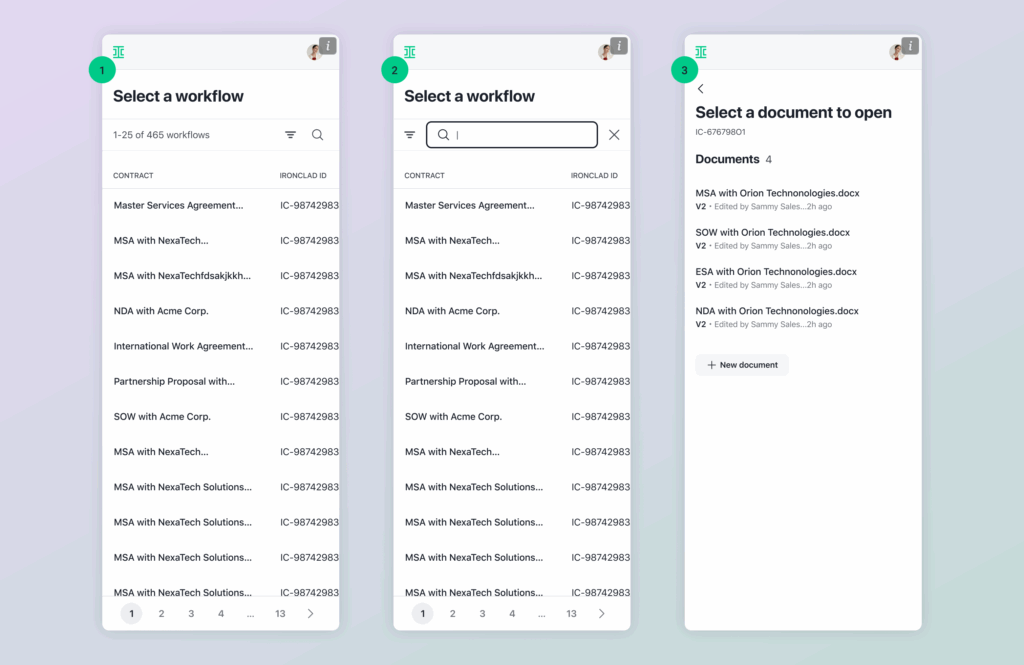
How this helps your team: Word remains the authoring tool of choice for many legal teams. This add-in lets them use the full power of Word while staying governed and auditable inside Ironclad.
3) Open and collaborate in Word Online
For teams moving to cloud editors but who still want Word’s rich formatting capabilities, you can now open Ironclad documents directly in Word Online. You get real-time collaboration, the full range of Word’s formatting options, and the familiar Word UI — plus the ability to bring changes back to Ironclad and publish a single version when you’re ready.
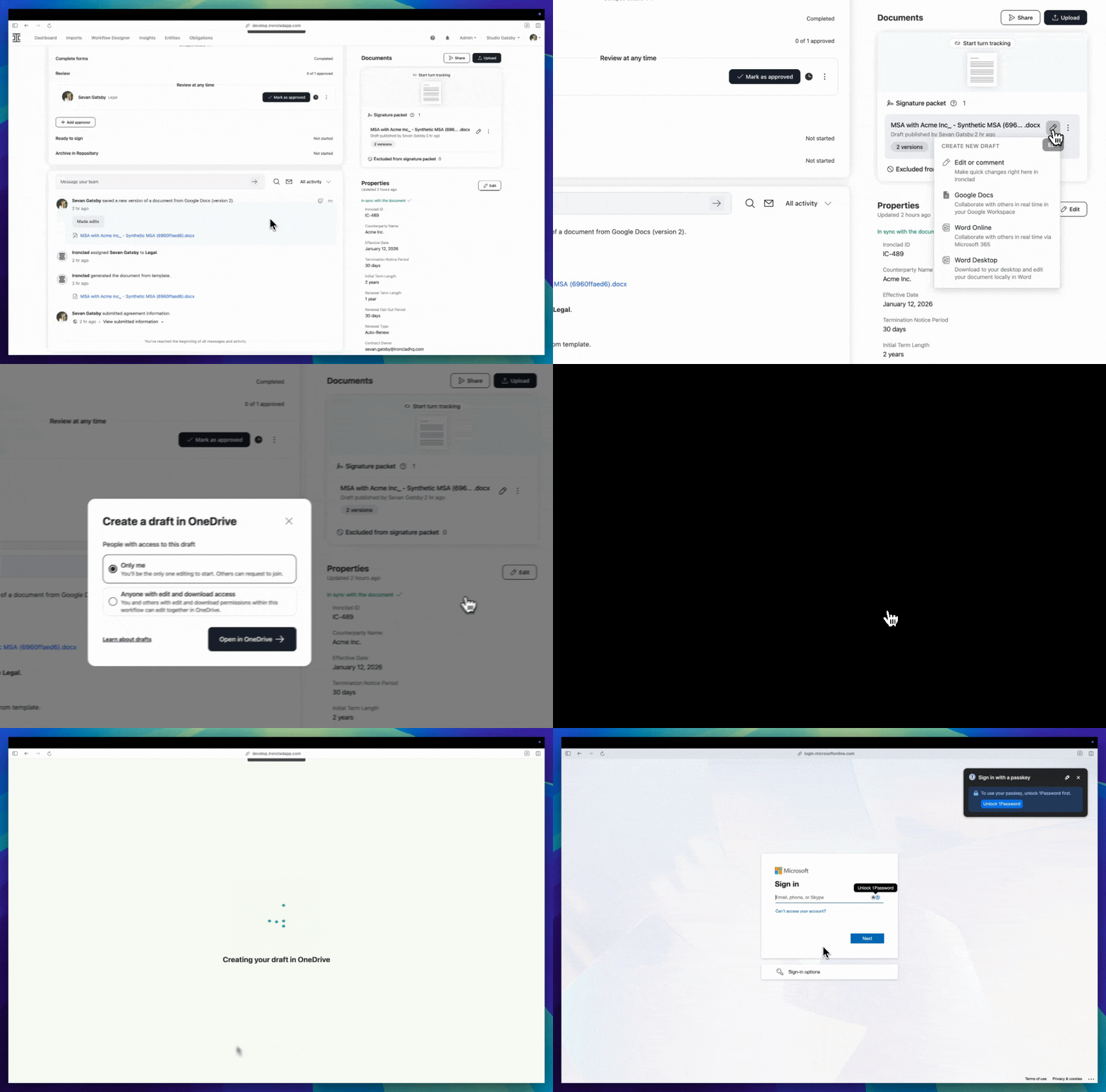
How this helps your team: Word Online brings Word’s formatting parity together with the cloud collaboration experience teams expect — and Ironclad preserves governance when you return.
Why this matters
At its core, this release is about removing friction so teams can move faster. By eliminating those manual download and upload steps, teams spend more time editing and less time managing files. More fundamentally, it allows legal and procurement teams to work where they’re most productive, using their preferred editor without sacrificing compliance, approvals, and audit trails.
The collaboration benefits are significant. Real-time co-editing in Google Docs and Word Online, combined with the full power of Word desktop for heavy formatting or legacy templates, means teams can choose the right tool for each task. And because changes are brought back and published as an intentional single version rather than generating a new Ironclad version for every save in an external editor, you get cleaner version history without “version overload.”
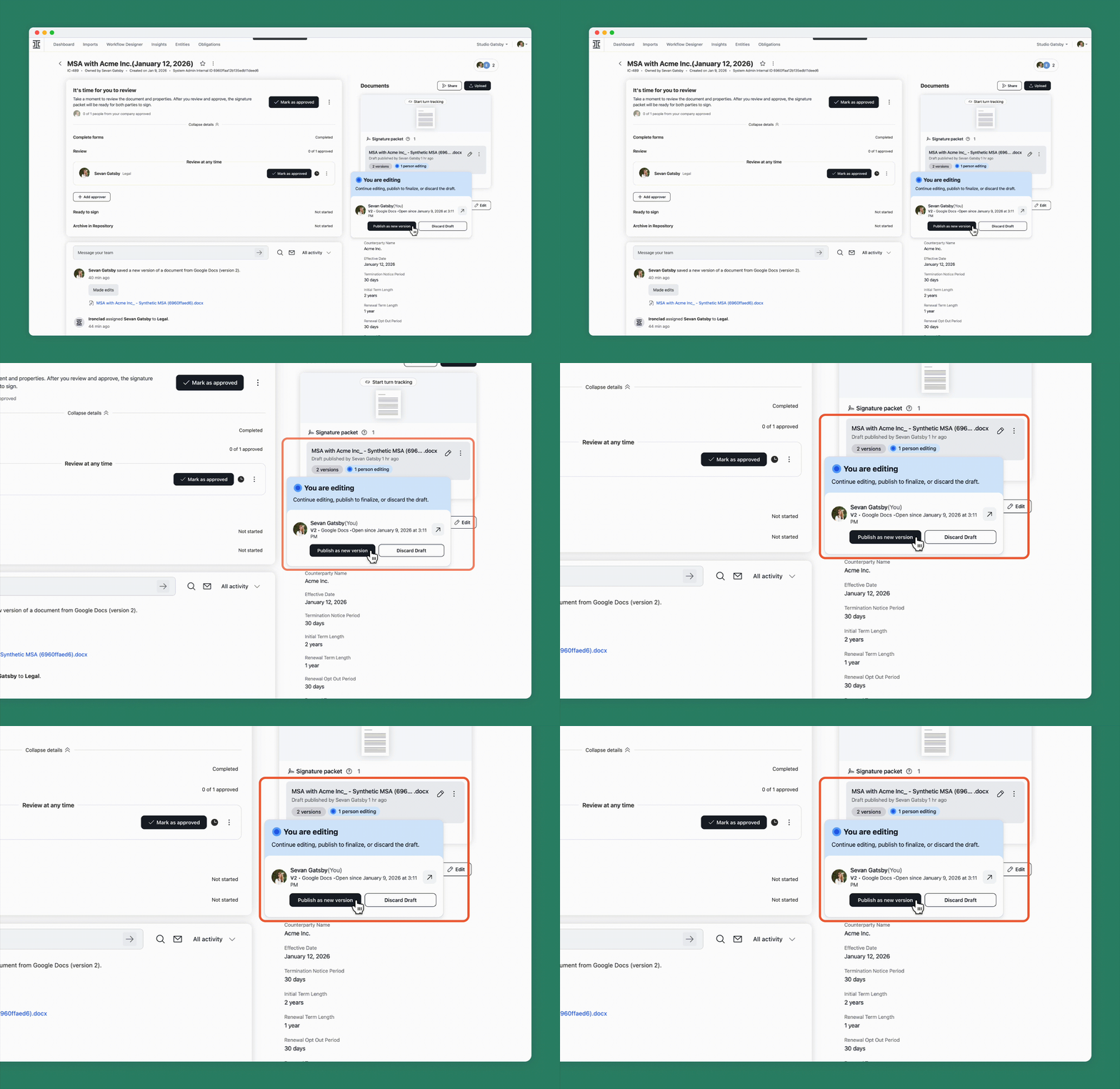
When edits do happen in different places, Ironclad’s merge tooling — which behaves much like a three-way merge — helps reconcile those changes and surfaces conflicts for easy resolution. It’s conflict handling you can trust.
Security, governance, and compliance: what stays the same
Your Ironclad permissions, approvals, and audit logs remain authoritative. Edits made in external editors don’t bypass required approvals, and all returns and imports to Ironclad are captured as part of the document history and audit trail.
Admins retain full control over who can use these integrations and how the add-in is deployed in their tenant. If you have specific regulatory or data residency needs, check your account settings or speak with your Customer Success Manager.
End user quick start steps:
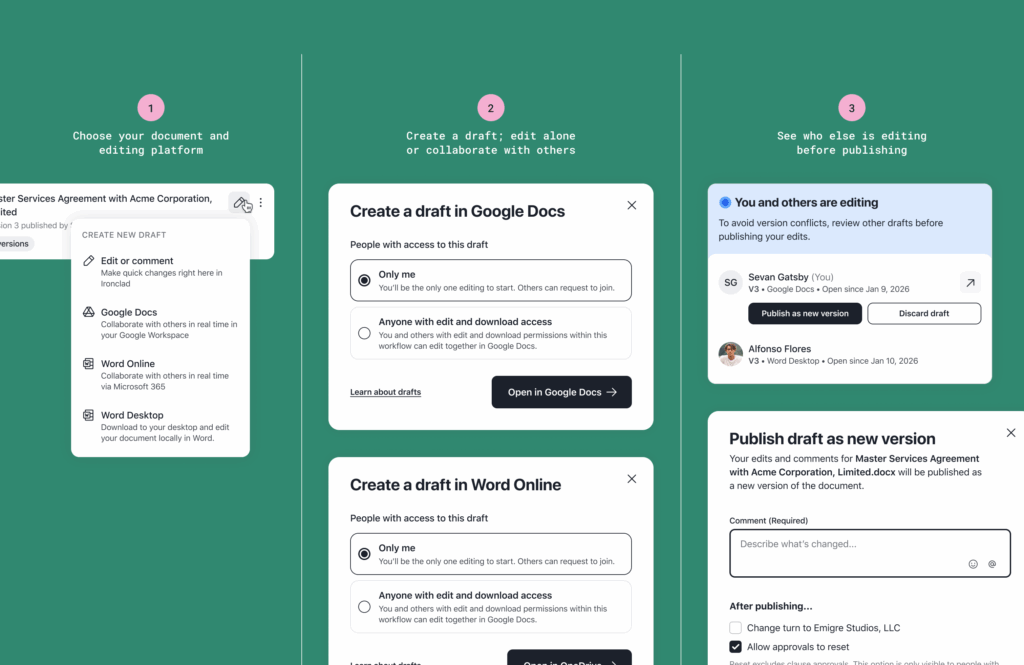
- Open the workflow in Ironclad
- Click Open in Google Docs / Open in Word Online / Open in Word (Add-In)
- Edit and collaborate as usual (use comments, suggested edits, or tracked changes depending on the tool)
- When ready, select “Publish new version” within Ironclad to Bring back to Ironclad (or in Word Add-In, use the ”Upload new version” option)
- Review the comparison and version preview in Ironclad, resolve any conflicts, then Publish to create the new official version
Best practices & recommended workflows
Choosing the right tool for each task will help your team get the most from these integrations:
- Use the Ironclad Editor for quick edits and simple workflows that don’t require complex formatting or collaboration
- Use Google Docs or Word Online for collaborative drafting and heavy co-editing sessions
- Use Word desktop + Add-In for heavy formatting, macros, or working with legacy templates that depend on Word-only features
To minimize version churn, designate a single person (typically the document owner) to perform the final publish in Ironclad. During collaborative drafting, prefer comments and suggested edits over direct edits, reserving straight edits for finalization. And if you expect heavy concurrent editing, coordinate a short handoff window or use comments to avoid edit collisions — Ironclad’s merge will help, but coordination reduces friction.
What we’ve heard so far
The response from beta users has been enthusiastic. They told us the Word Add-In removed hours of administrative work and kept approvals moving without extra uploads. Teams editing in Google Docs appreciated that Ironclad preserved governance while letting them work in a familiar, collaborative environment. Many customers said these integrations solved what had been their single biggest annoyance: the tedious download → edit → upload loop.
Known limitations & what’s next
While most content and formatting round-trips cleanly between editors, a few advanced Word-only features (very complex macros or proprietary third-party content controls) may not map perfectly across editors. We’ll surface guidance for specific edge cases in our documentation.
Looking ahead, we’re working to bring tighter parity between external editing experiences and our in-app AI capabilities. Our in-app editor currently offers unique AI drafting and redlining tied to your company’s playbooks and Jurist context, and we plan to extend these capabilities to the add-in and external edit experiences in upcoming releases.
On the deployment side, some enterprises will require tenant-level deployment for the Word Add-In, so plan for your IT timeline accordingly.
Ready to get started?
Admins can enable the integrations in your Ironclad admin console and coordinate with IT for Word Add-In deployment, after which end users can open an existing contract in Google Docs or Word Online and following the quick-start flow above.
Admin set up checklist:
- Enable the Google Docs and Word Online integrations in your Ironclad admin settings if required
- For the Word Add-In GA release, decide whether IT will push the add-in via the Microsoft 365 admin center or allow end-user installations (the add-in may require tenant-level permissions in some organizations)
- Notify your teams about the new workflows and recommended collaboration practices (see quick-start below)
- Update internal playbooks to indicate when to use the in-app Editor versus external editors (we include suggestions below)
Need help? Contact your Customer Success Manager or Ironclad Support for assistance with enabling integrations, tenant deployment, or training.
For live demos of these features, register for our What’s New webinar on January 28th.
Frequently asked questions
Q: Will edits in Google Docs/Word Online create a new Ironclad version on every save?
A: No — edits remain in the external editor until you choose to bring them back. When you bring the document back, Ironclad creates a single publishable version so you don’t get version overload from interim saves.
Q: Does this change Ironclad’s approvals/audit trail?
A: No — approvals, metadata, and audit logs remain part of the Ironclad record. Bringing changes back will be recorded in your document history.
Q: How do I get the Word Add-In?
A: The add-in is generally available. IT admins can deploy it centrally, or users can install it if your tenant allows. Check your admin console or speak with your Customer Success Manager for deployment assistance.
Ironclad is not a law firm, and this post does not constitute or contain legal advice. To evaluate the accuracy, sufficiency, or reliability of the ideas and guidance reflected here, or the applicability of these materials to your business, you should consult with a licensed attorney.


